NewDeal Technical Support Document 201
STEP BY STEP INSTALLATION GUIDE
How to install your NewDeal software, Part 3
Using NewDeal With Microsoft Windows 95 or 98
CREATING A SHORTCUT FOR NEWDEAL SCHOOLSUITE 98
A shortcut is an icon in Windows 95 or 98 that represents an item. You can
create a shortcut on your Windows desktop to quickly access NewDeal by following
these instructions.
- Right click anywhere on the background of the Windows desktop. Choose
New, Shortcut.

- Type in the name and path of the file you use to run NewDeal (usually
C:\NDS\LOADER.EXE). Click Next.
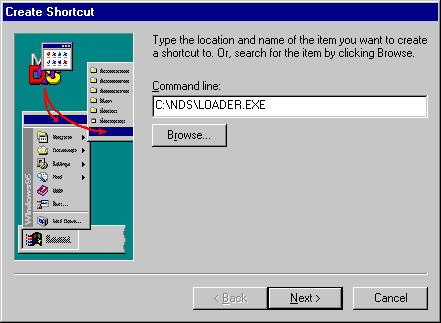
- Edit the name for the shortcut (NewDeal is suggested). Click Next.
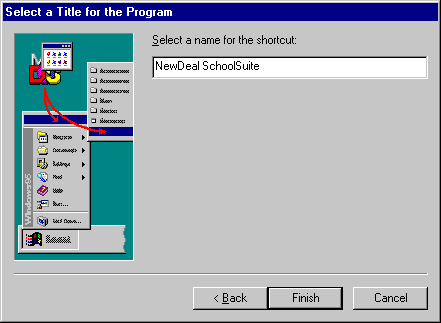
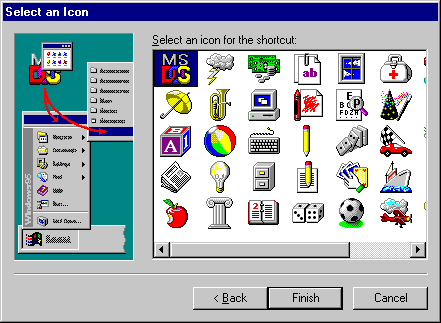
- Select an icon for the shortcut. You can change this selection later. Click
Finish.
CONFIGURING NEWDEAL TO RUN EFFICIENTLY UNDER WINDOWS
The following steps provide the most efficient configuration for running
NewDeal under Windows on most computers:
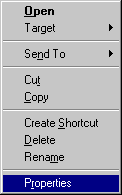
- Right click on your NewDeal shortcut. In the menu that appears, left click
on Properties.
- Click on the Program tab. It is suggested that you change the name from LOADER
to NewDeal. This is the name that will appear on your task bar when NewDeal
is running.
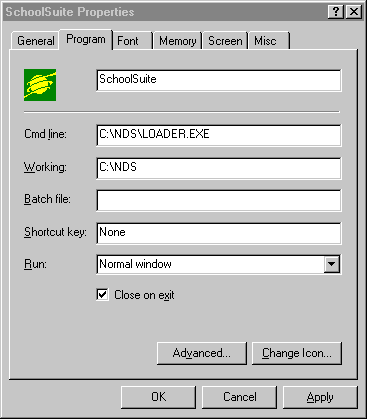
- Click in the Close on Exit box to enable this option.
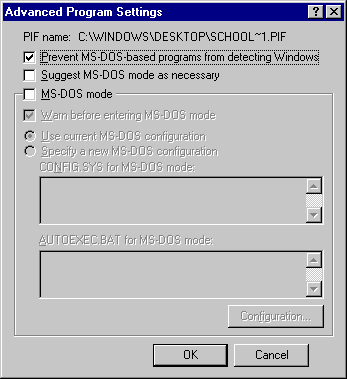
- Click on the Advanced button.
- Click on the Prevent MS-DOS based programs from detecting Windows box to
enable this option.
- Click in the Suggest MS-DOS mode as necessary box to disable this option.
- Click OK to exit this window.
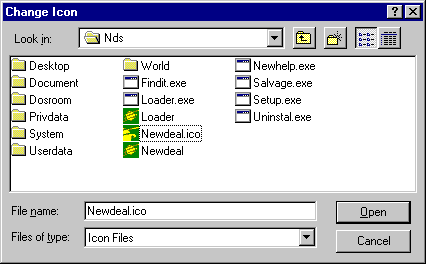
- To change the icon, (optional)
- Click on the Change Icon button.
- Click Browse and locate the NEWDEAL.ICO file, with the NewDeal logo, in the
directory where you installed NewDeal and double click it.
- Click OK to exit the Change Icon window.
- Click on the Screen tab.
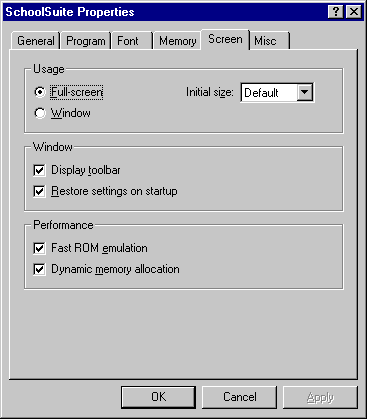
- Click on the Full-screen radio button under the Usage section.
- All other options should be left as default (checked).
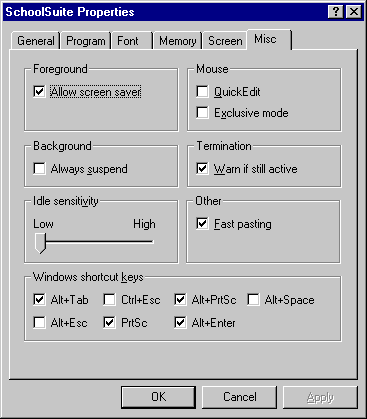
- Click on the Misc tab.
- Click on the Allow screen saver box under the Foreground section to disable
this option.
- Click on the Exclusive mode box under the Mouse section to enable this option.
- Click on the Ctrl+Esc, Alt+Space and Alt+Enter boxes under the Windows shortcut
keys section to disable these shortcut keys.
- All other options should be left as default.
- Click OK to close the Properties window and to apply the changes that you've
made above.
NOTE: We suggest making no changes under the Font or Memory tabs.
Congratulations, you are now ready to use NewDeal with Windows 95 or 98.
TASK SWITCHING BETWEEN NEWDEAL AND WINDOWS
To switch back to Windows while NewDeal is running, press Alt+Tab.
To switch back to NewDeal from Windows 95, select NewDeal from the Task Bar.
NOTE: If Windows 95 issues a warning beep and refuses to allow you to switch,
your Windows video driver or your video hardware may be incapable of changing
between the mode used in NewDeal and the mode used in Windows 95. Try changing
your video to VGA 640x480 16-Color in NewDeal's Preferences, Video, or choose
a driver with the same screen size and color depth for both NewDeal and Windows.
TROUBLE SHOOTING NEWDEAL AND WINDOWS
If you receive an error while trying to print, both NewDeal and Windows may
be trying to control the printer port. Follow these steps to solve this problem:
- Double click on My Computer.

- Double click on the Printers icon.

- Right click on the icon for your printer.

- Choose Properties.
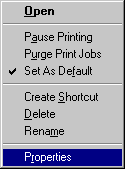
- Click the Details tab. This is where you will be changing your settings for
your printer so that NewDeal can print along with Windows. There are two
different solutions to resolve the printer conflict. Try the second solution
only if the first solution did not work for you.
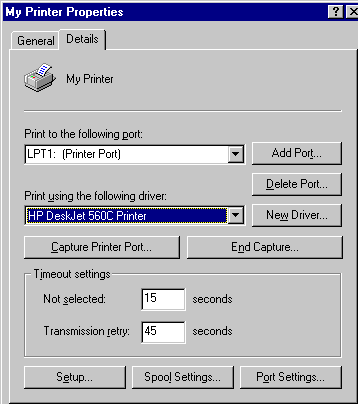
Solution 1
- Click the Port Settings button.
- Click on the Spool MS-DOS print jobs box to disable this option.
- Click OK to exit this window.

Solution 2
- Click the Spool Settings button.
- Click on the Start printing after last page is spooled radio button.
- Click OK to exit this window.
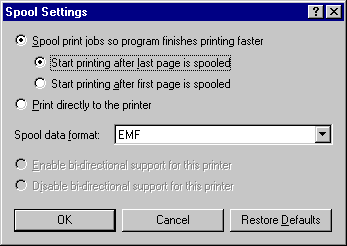
- Click OK to close the Printer Properties window and to apply the changes
that you've made above.
NOTE: We suggest making no changes to the other properties tabs.
Last Modified 15 Feb 1999